


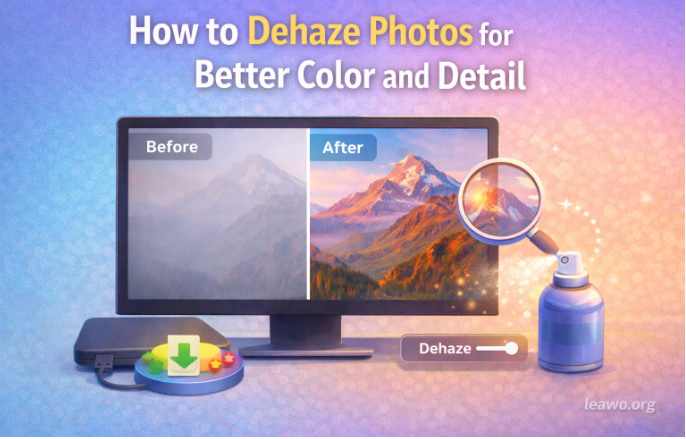
Few things disappoint photographers more than reviewing images only to discover that atmospheric conditions ruined potentially stunning shots. Fog, mist, pollution, and glare create hazy, washed-out photos lacking the vibrant colors and crisp details you remember seeing. Whether you’re a professional capturing landscapes or a casual photographer preserving memories, understanding how to dehaze photos transforms disappointing images into captivating visuals. This comprehensive guide explores haze types, removal techniques, and why certain images resist correction, empowering you to rescue your photography from atmospheric interference.
1. Identify the Type of Haze in Your Photo
Successfully removing haze begins with identifying its source. Different haze types require distinct approaches, and misdiagnosing the problem leads to ineffective corrections or unnatural results. Understanding these categories helps you select appropriate tools and settings.
1.1. Atmospheric Haze (Fog, Mist, Smog, or Pollution in Outdoor Photos)
Atmospheric haze occurs when moisture particles, dust, pollutants, or smoke suspended in the air scatter light before it reaches your camera sensor. This scattering reduces contrast, mutes colors, and creates that characteristic foggy appearance obscuring distant subjects. Mountain landscapes, coastal scenes, urban environments with smog, and sunrise or sunset photography frequently suffer from atmospheric haze.
The visual signature includes reduced visibility of distant objects, flattened depth perception making foreground and background appear closer together, desaturated colors appearing pale or washed out, and overall softness lacking crisp edges. Atmospheric haze affects primarily distant elements while leaving foreground subjects relatively clear, creating graduated haziness from front to back of your composition.
1.2. Lighting-Related Haze (Backlighting, Glare, or Overexposed Highlights)
Lighting conditions create haze-like effects without actual atmospheric particles. Shooting directly into bright light sources, lens flare from sun or artificial lights, overexposed highlights blowing out detail, and reflections from water, glass, or other surfaces all produce washed-out appearances mimicking atmospheric haze.
This type manifests as bright, blown-out areas lacking detail, reduced contrast specifically around light sources, color shifts or color casts affecting portions of the image, and distinct directionality pointing toward the light source. Unlike atmospheric haze which affects the entire scene uniformly, lighting-related haze typically impacts specific areas while leaving other regions unaffected.
1.3. Digital or Technical Haze (Compression Artifacts, Low Dynamic Range, or Flat Contrast)
Technical limitations create haze-like appearances unrelated to shooting conditions. Heavy JPEG compression degrading image quality, insufficient dynamic range in low-quality cameras, improper exposure settings producing flat, lifeless images, and poor lens quality contributing to general softness all result in hazy appearances that no amount of atmospheric correction can fix.
Digital haze appears as overall flatness across the entire image, compression artifacts creating blocky patterns or banding, lack of true blacks and whites reducing punch, and general softness without the graduated depth characteristics of atmospheric haze. Identifying technical haze saves time by revealing when equipment upgrades or better shooting techniques matter more than post-processing.
2. Automatic Dehazing: The Fastest Way for Most Users
For photographers wanting quick, effective results without manual adjustment complexity, AI-powered automatic dehazing provides the ideal solution. Leawo Photo Enhancer exemplifies this approach, offering one-click haze removal that analyzes your image and applies optimal corrections automatically.
The process is remarkably straightforward. Download and install Leawo Photo Enhancer on your Windows or Mac computer. Launch the application and click “Add Photos” to import images needing dehaze treatment. The software displays thumbnails of imported photos. Select images you want to enhance. Click the “AI Enhance” button and the software automatically analyzes each photo, detecting haze type and severity. Within seconds, the AI applies targeted corrections including contrast adjustment, color restoration, detail sharpening, and intelligent exposure balancing.
The beauty of automatic dehazing lies in its accessibility. No technical knowledge required, consistent results across multiple images, batch processing handles entire photo collections efficiently, and preservation of natural appearance avoids over-processed looks. The software particularly excels with atmospheric haze from fog, mist, or pollution, restoring vibrant colors and crisp details that atmospheric conditions obscured.
For users seeking additional creative control beyond basic enhancement, Leawo PhotoIns extends capabilities with comprehensive editing tools. This AI photo editor combines automatic enhancements with manual adjustments, background removal, object manipulation, and creative filters, creating a complete photo enhancement ecosystem suitable for both beginners and intermediate users.
3. Manual Dehazing in Photoshop: For Advanced Control
Professional photographers and advanced users often prefer manual control for precision results. Adobe Photoshop provides powerful dehazing tools through its Camera Raw filter, offering adjustable parameters for customized corrections beyond automatic processing capabilities.
To dehaze in Photoshop, open your image and navigate to Filter, Camera Raw Filter to access the adjustment panel. Locate the Dehaze slider in the Effects section. Drag the slider rightward, positive values remove haze while negative values add atmospheric effects. Start with moderate adjustments around 40-60 rather than immediately maxing the slider. This prevents unnatural over-correction.
However, aggressive dehazing introduces side effects requiring correction. Increased saturation often makes colors appear unrealistically vibrant, so reduce Vibrance by 10-30 to restore natural color balance. Enhanced contrast can create harsh shadows and blown highlights, so adjust Shadows upward by 30-60 to recover shadow detail and reduce Highlights by 20-40 to prevent overexposure in bright areas.
Fine-tune exposure and white balance if the overall brightness shifts unnaturally. Dehaze affects midtones significantly, sometimes requiring exposure compensation. Apply selective adjustments using masks or adjustment brushes when only portions of your image need dehazing. Sky areas frequently need stronger correction than foreground subjects.
Advanced techniques include combining Dehaze with Clarity for midtone contrast, adjusting individual color channel curves for precise tonal control, and using luminosity masks to target specific tonal ranges. These methods provide ultimate control but require practice and understanding of color theory and tonal relationships.
4. Why Dehazing Doesn’t Always Work
Understanding limitations prevents frustration when encountering stubborn haze. Several scenarios resist effective correction regardless of tools or techniques employed. Severe atmospheric conditions where fog or mist completely obscures subjects leave insufficient detail for algorithms to recover. If your subject is barely visible in the original image, no amount of processing recreates missing information.
Technical issues pose different challenges. Extreme overexposure blows out highlights entirely, leaving pure white areas with zero recoverable data. Similarly, crushed shadows lose all detail in darkest regions. Compression artifacts from heavy JPEG compression create irreversible quality loss that dehaze tools cannot fix. Starting with high-quality RAW files provides maximum recovery potential.
Lighting problems sometimes masquerade as haze. Strong backlighting creates lens flare and contrast reduction that dehaze tools interpret incorrectly, leading to unnatural results. In these cases, exposure blending or HDR techniques work better than simple dehazing.
Finally, some images intentionally include haze for artistic effect. Removing atmospheric softness from intentionally moody or dreamy photos destroys their aesthetic purpose. Always consider the creative intent before automatically applying corrections. Portrait photographers often embrace subtle haze for its flattering skin-softening properties, where aggressive dehazing would exaggerate skin texture unattractively.
5. Conclusion
Learning how to dehaze a photo opens new possibilities for rescuing images that atmospheric conditions compromised. Whether using automatic AI solutions like Leawo Photo Enhancer for quick, consistent results or manual Photoshop techniques for ultimate control, the ability to remove haze from photos dramatically improves your photography’s impact.
Success requires properly identifying haze types, selecting appropriate tools, and recognizing when correction isn’t possible or desirable. Atmospheric haze responds well to dedicated dehazing algorithms, lighting issues may require alternative approaches, and technical limitations sometimes necessitate better shooting practices rather than post-processing heroics.
By mastering these techniques and understanding their limitations, you transform disappointing, washed-out images into vibrant, detailed photographs that capture the scenes as you remember experiencing them. Whether enhancing landscape portfolios, improving travel memories, or preparing images for professional use, effective dehazing skills represent essential additions to every photographer’s digital toolkit.
