


Bookmarks are an essential part of our daily browsing experience. They help you to save your important websites, research resources, work portals, and personal favourites so you can access them instantly. However, sometimes you might lose these bookmarks on your Mac, whether from the Safari or Google Chrome browsers, which can be frustrating and stressful. There are several reasons, such as accidental deletion, recent macOS updates, browser crashes, etc., why your Bookmarks get deleted.
Fortunately, several methods are available online that can help you restore Safari and Chrome bookmarks on Mac. In this guide, we will discuss why bookmarks get deleted and all practical methods for data recovery on Mac to help you understand how to restore Safari and Chrome Bookmarks on Mac, step by step. Let’s get started!
Common Reasons Why Bookmarks Get Deleted on Mac
Understanding the exact reason for bookmark deletion on your Mac helps you find the most suitable recovery solutions. Some main reasons why Safari and Chrome Bookmarks get deleted are:
- Accidental Deletion: You might have accidentally deleted bookmarks while cleaning up your browser or reorganising bookmark folders. Sometimes, an entire bookmarks folder gets removed by mistake.
- Browser Update Issues: Updating Safari or Google Chrome can sometimes reset browser settings or corrupt bookmark files, leading to their unexpected deletion.
- iCloud or Google Sync Problems: If Safari iCloud sync or Chrome Google sync is enabled, deleting bookmarks on one device can automatically remove them from all synced devices.
- User Profile or Account Issues: If you’ve logged into a different user account on the Mac or switched Chrome profiles, it can make bookmarks appear missing, even though they still exist under another profile.
How do I Restore Deleted Bookmarks on Safari and Chrome?
Now that you are familiar with the above reasons for the deletion of bookmarks on your Safari or Chrome browser, it’s time to proceed with the recovery workarounds. Let’s discuss different methods to restore bookmarks separately for each browser in detail:
Recover Bookmarks on Safari
Method 01: Restore Safari Bookmarks Using iCloud
If you’ve synced Safari bookmarks with iCloud, restoring them is quite easy. iCloud automatically saves and syncs Safari bookmarks across all Apple devices using the same Apple ID. Follow the below steps to restore Safari bookmarks using iCloud:
- Launch Apple Safari web browser on your Mac and sign in with your Apple ID (synced with deleted Safari bookmarks).
- After logging in, go to Account Settings > Advanced
- Now, click on Restore Bookmarks to view previously saved versions of Safari bookmarks.
- Select the backup version of deleted bookmarks that you need to restore.
- Click Restore and wait till iCloud replaces the current bookmarks with the selected version.
Once done, open Safari on your Mac and check if the restored bookmarks are visible now.
Method 02: Recover Deleted Bookmarks from Time Machine Backup
macOS provides a built-in Time Machine backup utility, which, when enabled on your Mac, automatically creates regular backups of system and user data. If Safari or Chrome bookmarks were deleted, try restoring them using Time Machine’s previous backups. It is one of the most reliable and secure recovery options available on macOS. All you have to do is:
- Open Finder from the Dock, go to Macintosh HD > Users > YourUsername > Library > Safari.
- Now, locate the file named plist.
- Launch Time Machine from the Application folder or click the Time Machine icon from the Menu Bar and select Enter Time Machine.
- Use the Timeline or Up/Down arrow to go to the date when the bookmark file was intact. Select plist and click Restore.
Restart your browser and check if the selected bookmarks appear in the browser’s bookmark section.
Recover Bookmarks on Chrome
Method 01: Recover Chrome Bookmarks Using Google Sync
If Chrome Sync was enabled earlier, your bookmarks are safely stored in your Google account. You can follow the below steps to restore Chrome bookmarks:
- Open Google Chrome browser on your Mac, then click on the profile icon at the top-right corner.
- Sign in to your Google account that was previously used for Chrome Sync.
- Go to Settings > You and Google. Enable Sync if it is disabled on your Chrome browser.
- Also, ensure that the Bookmarks toggle is enabled under sync customisation options.
- Your bookmarks should automatically reappear after syncing.
Method 02: Restore from Bookmark Backup File
Chrome automatically creates a backup file named Bookmarks.bak to protect your bookmark data from accidental loss. This backup file stores a previously saved version of your bookmarks. To restore Chrome bookmarks:
- Launch Finder, press Command +Shift + G to open the Go to Folder dialogue box.
- Now, paste the following path ~/Library/Application Support/Google/Chrome/Default/ and click Go to proceed.
- Locate and rename Bookmarks to old and Bookmarks.bak to Bookmarks.
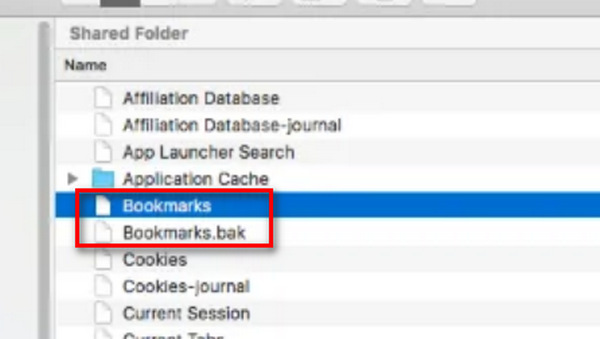
- After renaming the files, close the Finder window to avoid accidental changes.
- Reopen Google Chrome and check if your previously deleted bookmarks are back.
Additional Tip: Restore Deleted Safari and Chrome Bookmarks Using Third-Party Software
If the above methods to restore deleted bookmarks on Safari and Chrome browsers fail, try third-party tools for data recovery on Mac. Tools like Stellar Data Recovery Professional For Mac are especially designed to recover deleted files, including your browser’s bookmarks. This all-in-one mac data recovery software allows you to restore deleted files of various types from Mac internal drives, external storage devices, and even formatted disks. It supports recovery of browser-related files, including Safari and Chrome bookmark data.
Here’s how to restore Safari and Chrome bookmarks on Mac using this professional data recovery software:
Step 1: Download and install the Stellar Data Recovery Professional for Mac software on your Mac. Avoid installing the software on the same drive where data loss occurred to prevent overwriting deleted files.
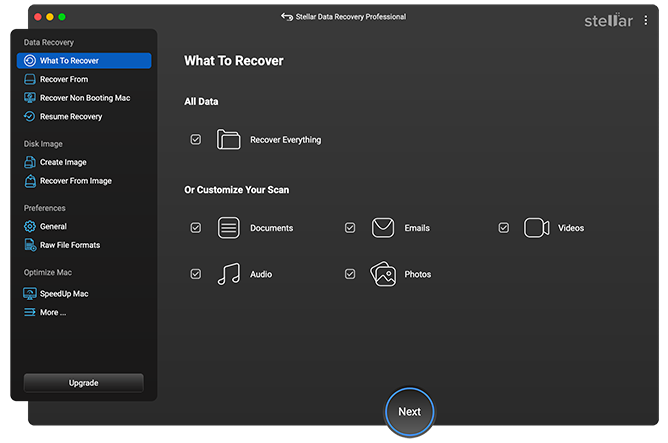
Step 2: Launch the software and select Documents or Recover Everything, as bookmark files are stored as system documents. Click Next to proceed.
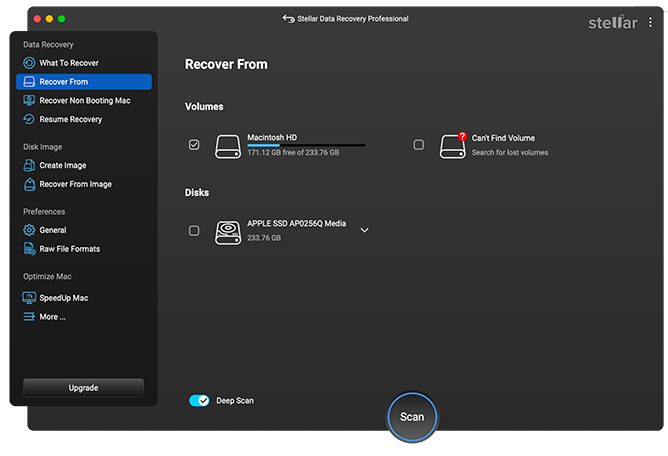
Step 3: Select the Mac internal drive (usually Macintosh HD) where Safari or Chrome was installed. Click Scan to begin the recovery process.
Step 4: Once the scan completes, browse the results and look for browser-related files such as Bookmarks.plist (Safari) and Bookmarks (Chrome profile files).
Step 5: Select the required bookmark files and click Recover to save them to a secure external location.
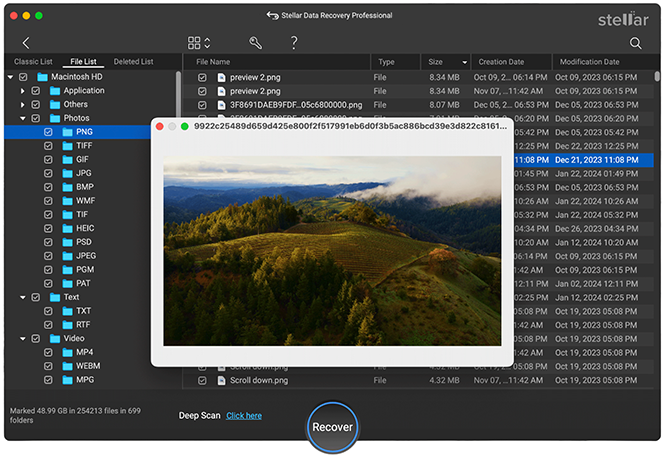
Once done, manually replace the recovered bookmark files in their respective browser directories or import them into Safari or Chrome to complete the restoration.
Conclusion
Recovering Safari or Chrome bookmarks on a Mac can feel challenging, but the aforementioned methods can help you in easy recovery. You can try backup utilities like Cloud or Time Machine to recover deleted bookmarks. However, if these methods fail or seem complex, tools like Stellar Data Recovery Professional for Mac can help retrieve deleted bookmark files.
The key takeaway is to act quickly, avoid overwriting data, and always maintain backups or sync settings. With the right approach, restoring Safari and Chrome bookmarks on Mac is not only possible but often straightforward.
